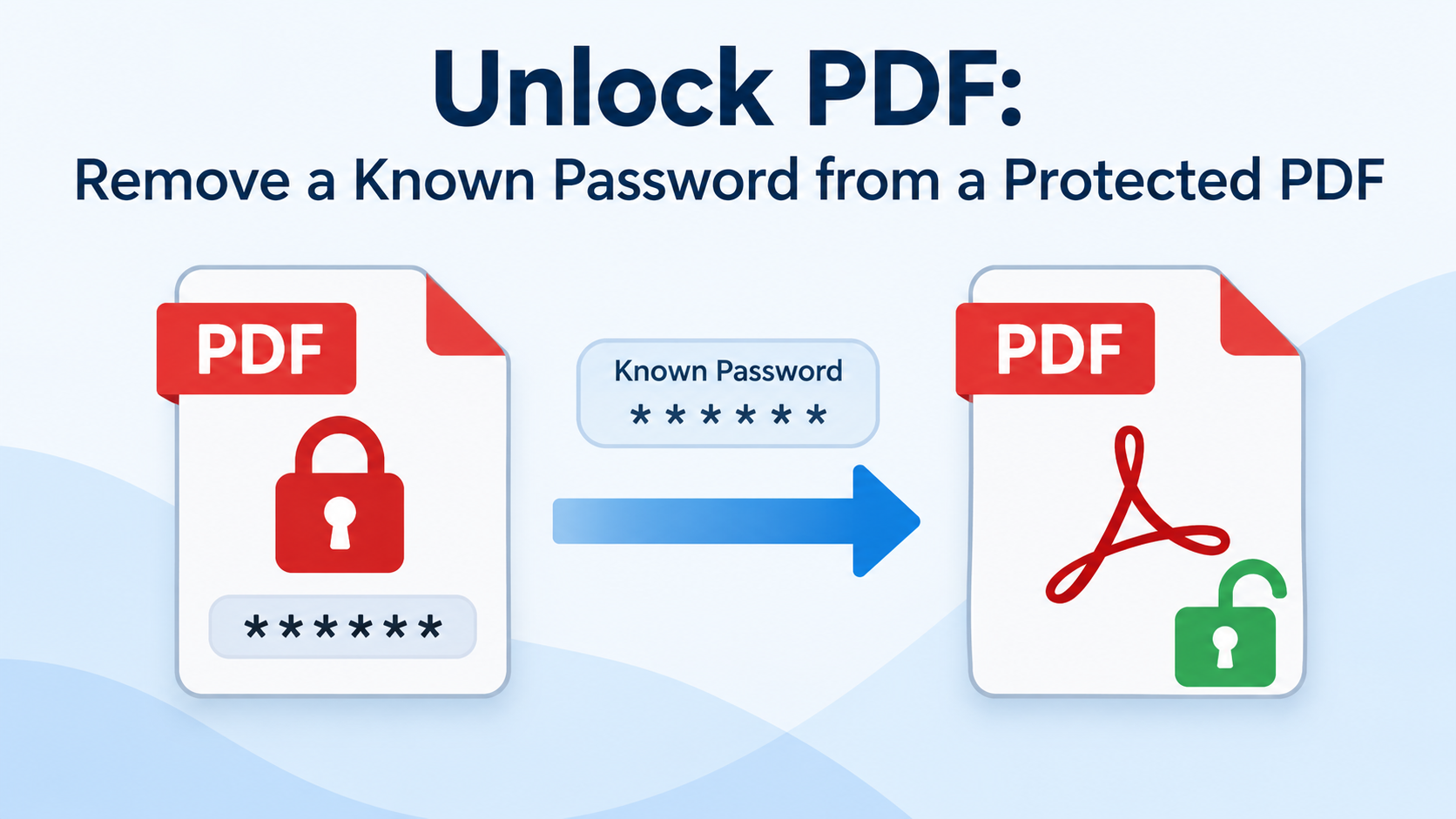
Unlock PDF is a simple and convenient way to remove a known password from a password-protected PDF file. If you have the correct password and want to access your document without entering it every time, this tool can help make the process easier.
Whether you are working with personal documents, office reports, study materials, or business files, unlocking a PDF can make everyday document management more convenient.
What Is Unlock PDF?
Unlock PDF is a tool designed to remove password protection from a PDF when the correct password is available. Once the password is verified and the protection is successfully removed, you can open the unlocked document without entering the same password again.
This tool is particularly useful for people who frequently access PDF files and want to simplify their workflow.
Key Features of Unlock PDF
1. Remove a Known Password
Unlock password-protected PDF documents when you know the existing password and have permission to modify the file.
2. Free to Use
A free PDF unlocking tool helps users remove password protection without paying for expensive desktop software or subscriptions.
3. Easy to Use
A straightforward process makes unlocking PDFs accessible to students, professionals, and everyday users, even without technical knowledge.
4. Convenient Document Access
After successfully removing the password, you can open the document without repeatedly entering the password, provided no other restrictions apply.
5. Privacy-Focused Processing
For sensitive documents, privacy is an important consideration. A tool that processes files locally in your browser can help minimize data exposure. Check the tool's actual processing method and privacy policy before uploading confidential files.
How to Unlock a PDF
Follow these simple steps to remove a known password from your PDF file:
- Select your PDF: Choose the password-protected PDF document you want to unlock.
- Enter the password: Provide the correct password for the document.
- Unlock the PDF: Start the unlocking process and allow the tool to remove the protection.
- Download the file: Save the unlocked PDF to your device.
- Open and verify: Open the new file to confirm that it works correctly and contains the expected content.
The exact steps may vary depending on the PDF unlocking tool you use.
Why Remove a Password from a PDF?
Password protection helps keep documents secure, but it can become inconvenient when you need to access the same file frequently. Removing a known password can be helpful when:
- You regularly reference a work document.
- You want to read study notes without repeatedly entering a password.
- You need easier access to your own invoices, reports, or records.
- You want to share a document with authorized recipients without requiring them to enter the original password.
- You are organizing files for long-term personal or professional use.
Always make sure you have permission to remove the document's protection before unlocking it.
Is It Safe to Unlock a PDF Online?
The safety of an online PDF unlocking tool depends on how it handles your files. Some tools process documents directly in your browser, while others upload them to remote servers.
If your tool offers local processing, files may never leave your device. If it uses server-side processing, review its privacy policy, file-retention practices, and security measures before using it with confidential information.
For sensitive documents, offline PDF software may be a better choice.
Can You Unlock a PDF Without the Password?
This tool is intended for removing a known password, not bypassing unknown passwords. If you have forgotten the password, check your password manager, original email, or the person who supplied the document.
Some PDFs also have restrictions on printing, editing, or copying that are separate from the password required to open the file. The ability to remove those restrictions depends on the document's security settings and the permissions you have.
Unlock PDF vs. Other PDF Tools
Unlike PDF compression, merging, or conversion tools, an unlock PDF tool focuses specifically on removing password protection from a document when the correct password is known.
It is useful when you want to simplify access to an existing file without changing its intended content. After unlocking, you should verify that the document's pages, formatting, and important information remain intact.
Frequently Asked Questions
Is Unlock PDF free?
Yes, if the tool you choose offers a free service. Check for any file-size limits or usage restrictions.
Does unlocking a PDF change its content?
Removing password protection is intended to change the document's security settings rather than its content. However, always verify the resulting file.
Can I unlock any protected PDF?
Not necessarily. The result depends on the type of protection, the PDF's security settings, the correct password, and the tool's capabilities.
Will my PDF be stored online?
That depends on the service. If privacy is important, choose a tool that clearly explains its file-handling practices and whether processing happens locally or on a server.
Can I use the unlocked PDF on another device?
Yes. Once you save the unlocked file, you can generally transfer and open it on compatible devices without entering the removed password.
Conclusion
Unlock PDF provides a convenient way to remove a known password from a protected PDF when you have the necessary authorization. With a simple workflow, free access where offered, and appropriate privacy precautions, you can make your documents easier to access and manage.
For the best results, use the correct password, choose a trustworthy tool, and keep a secure backup of the original PDF. Removing password protection also removes an important layer of security, so only unlock documents when doing so is appropriate.